> For the complete documentation index, see [llms.txt](https://layouthub.gitbook.io/layouthub/llms.txt). Markdown versions of documentation pages are available by appending `.md` to page URLs; this page is available as [Markdown](https://layouthub.gitbook.io/layouthub/user-guides/section-builder.md).

# Section builder

A section in Shopify is a reusable block of content that can be added to different parts of a theme, such as the homepage or product page.

## 1. Add new section

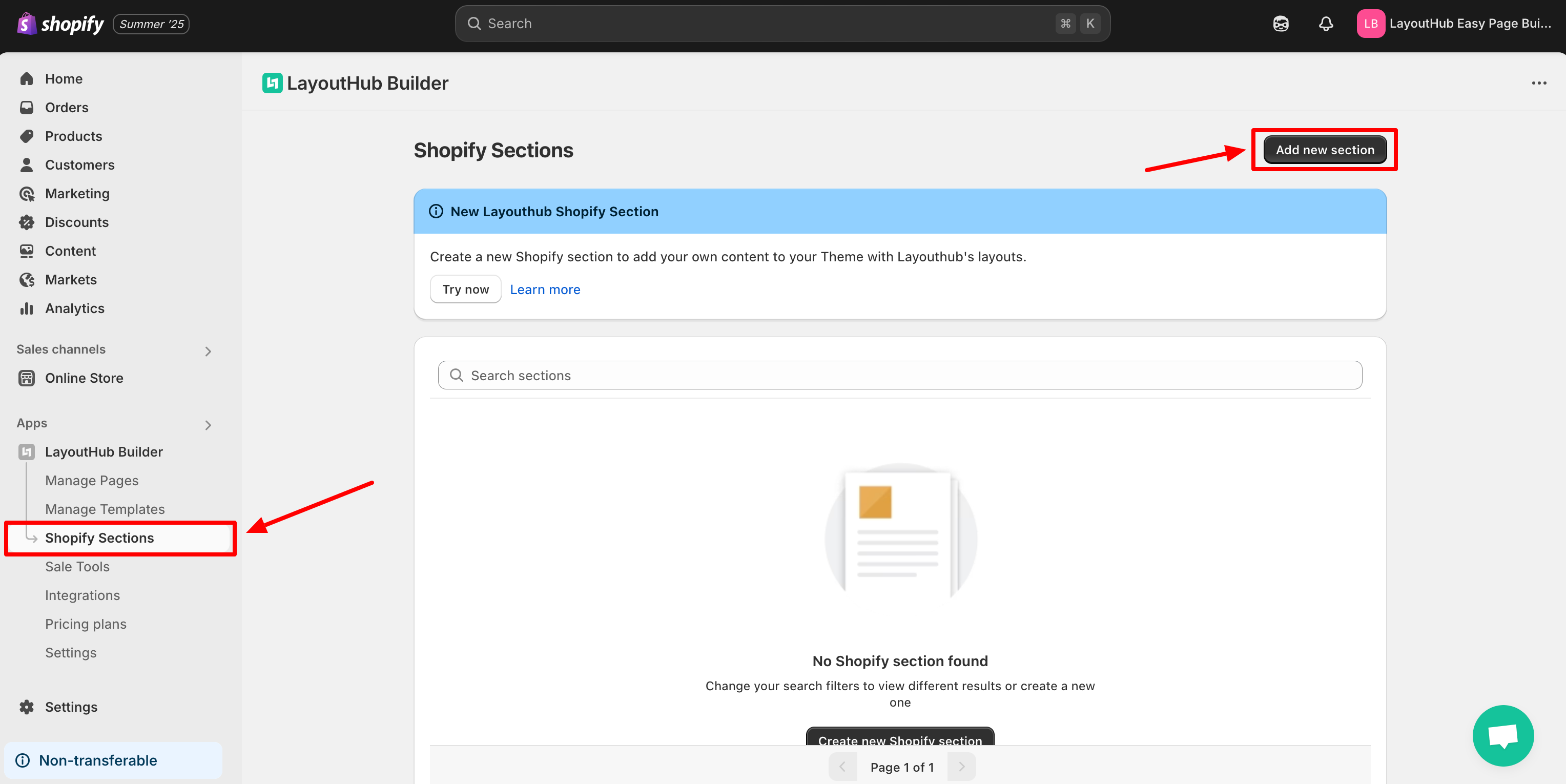
From the **Dashboard** of the app, go to **Shopify Sections** -> click on **Add new section** button to upgrade your plan.

<figure><img src="https://1163003613-files.gitbook.io/~/files/v0/b/gitbook-x-prod.appspot.com/o/spaces%2F-LgfWhgsKZsZtv4UlNyu%2Fuploads%2FciOSrDYwgkUAKr589fFQ%2Fimage.png?alt=media&amp;token=7963fddb-4754-41b8-a8f1-126a7058d878" alt=""><figcaption></figcaption></figure>

Click on **Add Layout** to choose a new layout for your page.

<figure><img src="https://1163003613-files.gitbook.io/~/files/v0/b/gitbook-x-prod.appspot.com/o/spaces%2F-LgfWhgsKZsZtv4UlNyu%2Fuploads%2FLOUAsURT0fQiM8fBS1Xf%2Fimage.png?alt=media&amp;token=d63f25c5-3f15-4fd5-8abe-54c6ad88d39d" alt=""><figcaption></figcaption></figure>

## 2. Choose your template

Once the layout panel opens, use the search bar or categories to find your desired layout. When you're ready, click **Import** to add it to your editor.

<figure><img src="https://1163003613-files.gitbook.io/~/files/v0/b/gitbook-x-prod.appspot.com/o/spaces%2F-LgfWhgsKZsZtv4UlNyu%2Fuploads%2F43COMU9sgIU3QZJmSSVt%2Fimage.png?alt=media&amp;token=3d412c49-8ee0-4826-a038-f1c53d3e8ea8" alt=""><figcaption></figcaption></figure>

## 3. Save your template

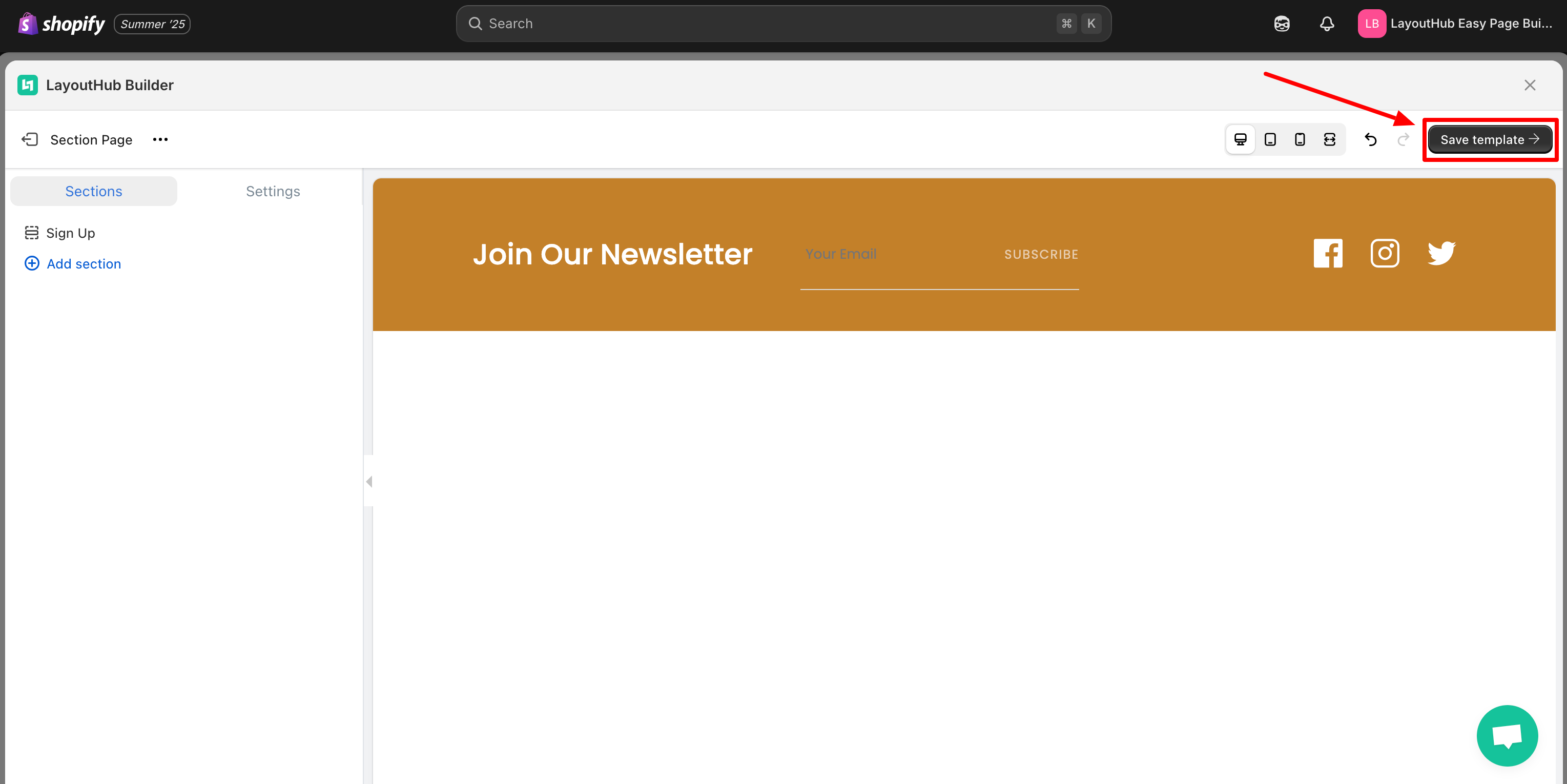
Click **Save Template** to prepare your changes.

<figure><img src="https://1163003613-files.gitbook.io/~/files/v0/b/gitbook-x-prod.appspot.com/o/spaces%2F-LgfWhgsKZsZtv4UlNyu%2Fuploads%2F2S13tA09Nsp6x88xoNCe%2Fimage.png?alt=media&amp;token=bea6e583-d27b-4d13-b06a-32b155337188" alt=""><figcaption></figcaption></figure>

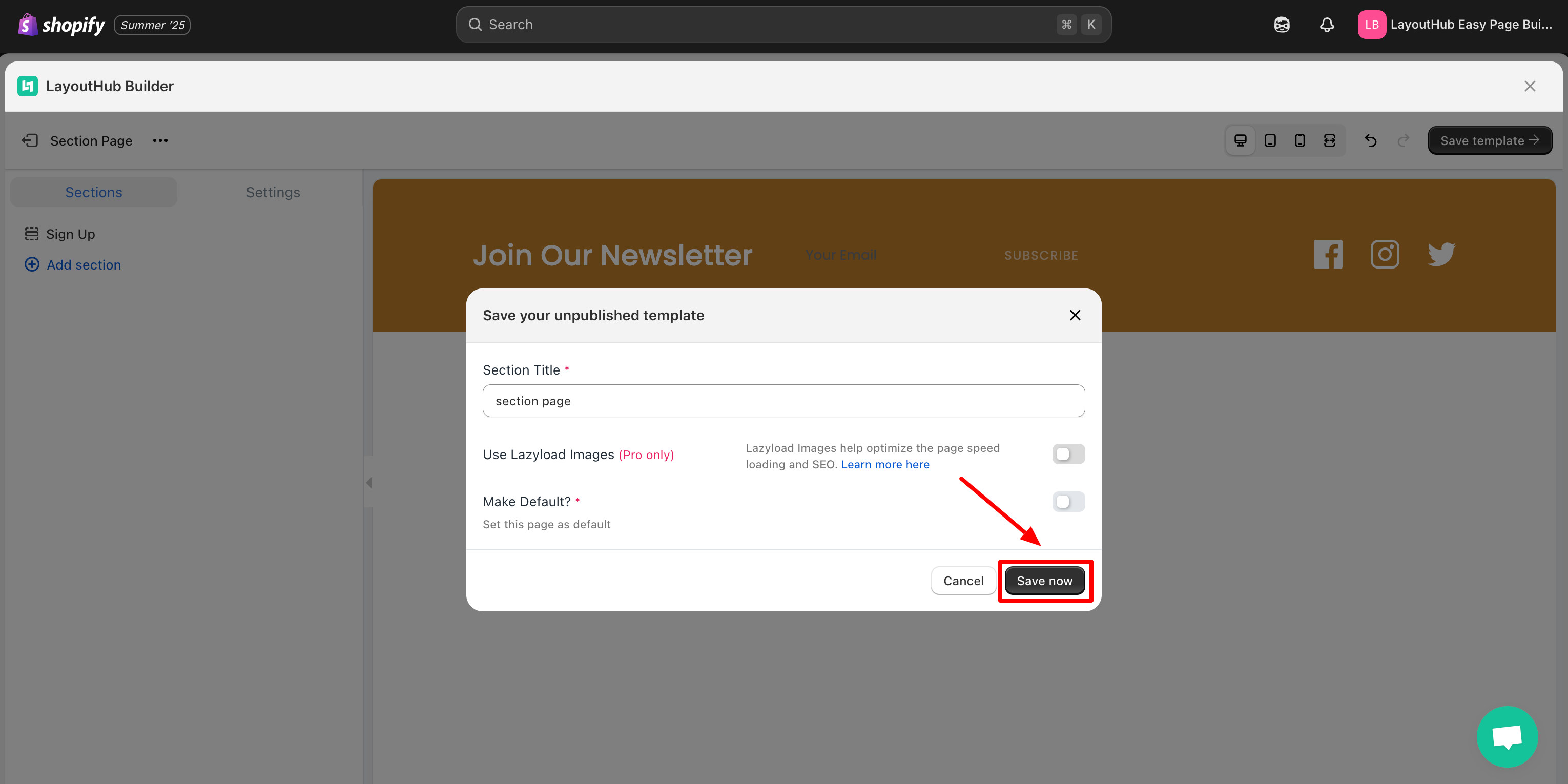
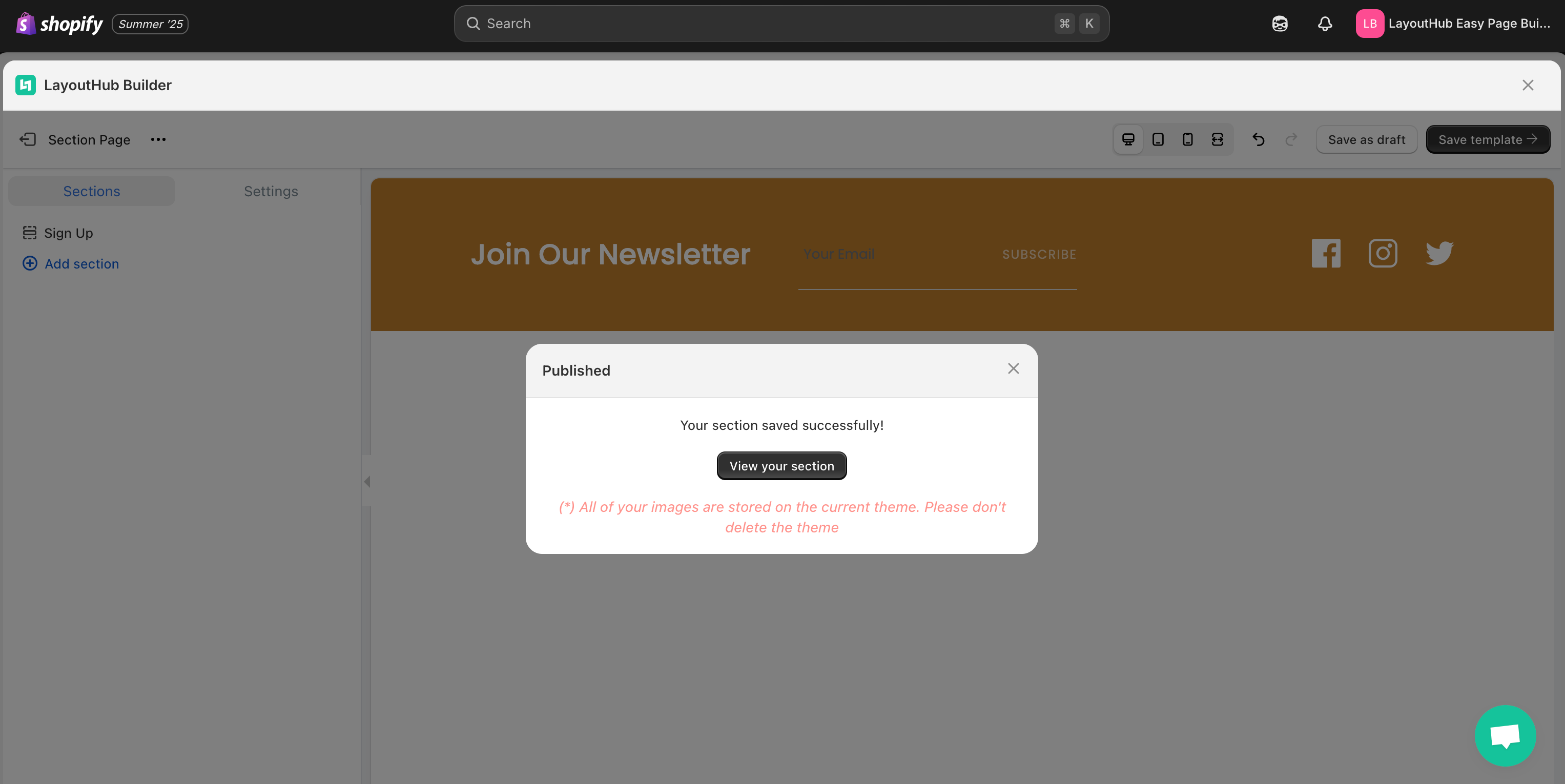
Then, click **Save Now** to apply and finish saving/publishing.

<figure><img src="https://1163003613-files.gitbook.io/~/files/v0/b/gitbook-x-prod.appspot.com/o/spaces%2F-LgfWhgsKZsZtv4UlNyu%2Fuploads%2FVZHjXReqsiyYEcqWw68j%2Fimage.png?alt=media&amp;token=8169bf98-67fd-4f54-b229-a32f47757ab1" alt=""><figcaption></figcaption></figure>

<figure><img src="https://1163003613-files.gitbook.io/~/files/v0/b/gitbook-x-prod.appspot.com/o/spaces%2F-LgfWhgsKZsZtv4UlNyu%2Fuploads%2FP28wS4UnD8S967VM1Q8D%2Fimage.png?alt=media&amp;token=18ca1daa-252d-4ce8-8091-6ccc147b4b32" alt=""><figcaption></figcaption></figure>

## 4. Add Section to Your Page

Firstly, go to **Shopify Theme Customize**

<figure><img src="https://1163003613-files.gitbook.io/~/files/v0/b/gitbook-x-prod.appspot.com/o/spaces%2F-LgfWhgsKZsZtv4UlNyu%2Fuploads%2FnhMzY6Opid2QFseY2MYH%2Fimage.png?alt=media&amp;token=c3d6bc00-bec6-48d8-9a79-9fe14c02daa5" alt=""><figcaption></figcaption></figure>

From the left sidebar, click **Add Section** and select the one you just created in LayoutHub

Save your work.